Fly an overlay into your video
Use editable position keyframes to move glasses or another graphic from outside the frame to a chosen location.
1. Add and position the graphic
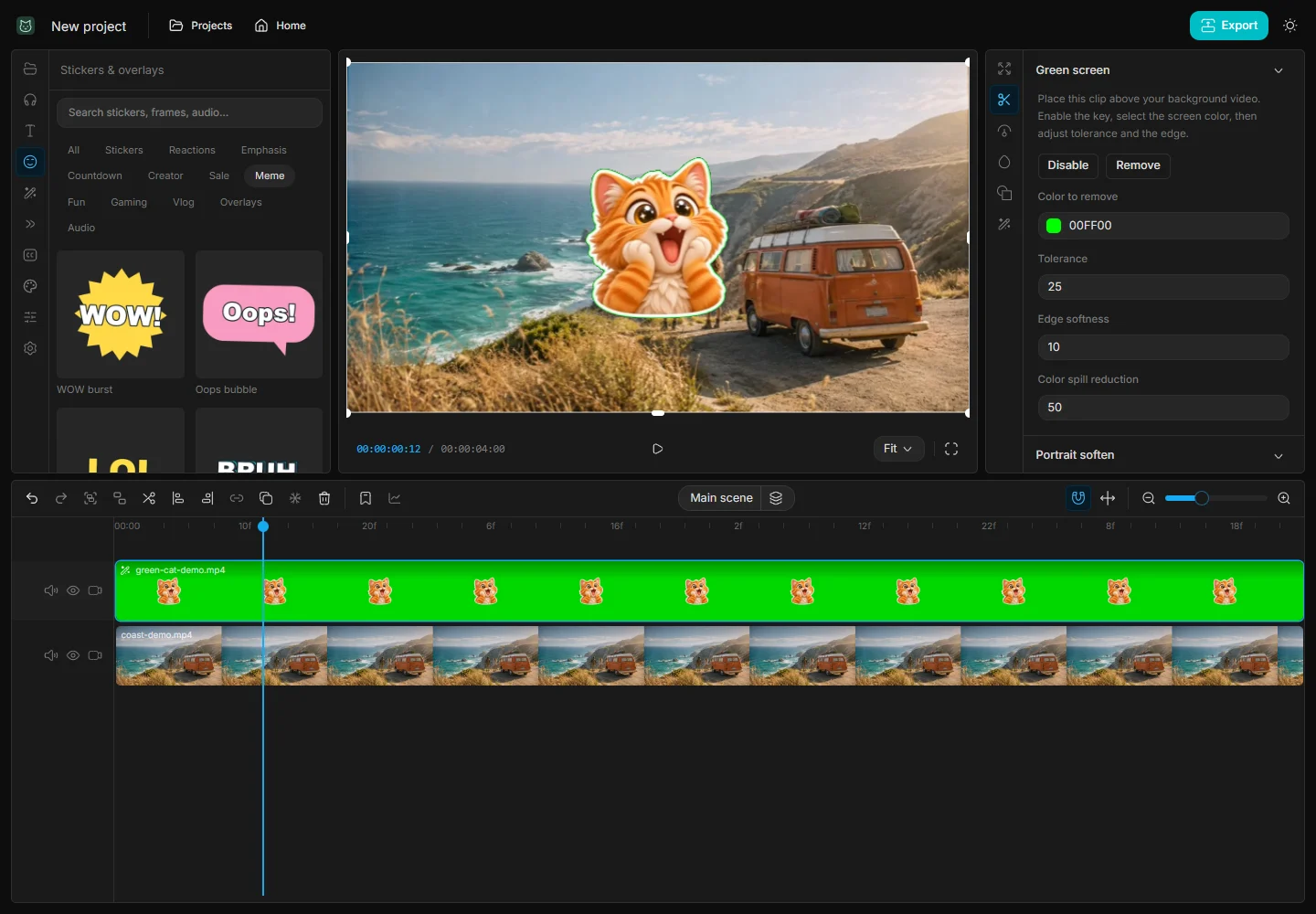
Open Stickers & overlays, search for Pixel glasses, and add it to the timeline. Set its size and final position in the preview. The overlay occupies its own bar, so you can move or trim its visible time independently of the video.
2. Choose an entrance
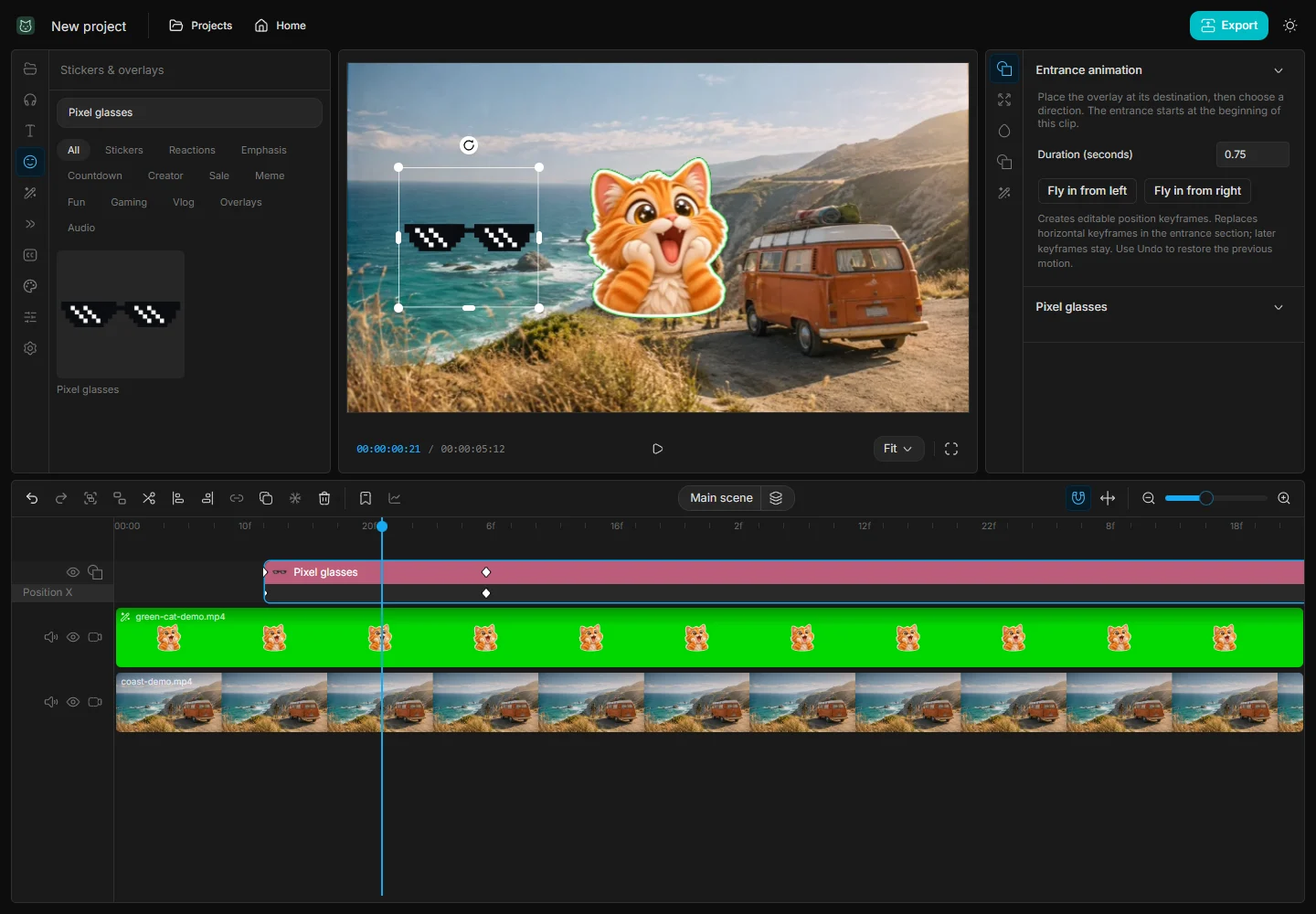
In Entrance, choose a duration and click Fly in from left or Fly in from right. CatCut creates position keyframes from outside the project canvas to your current position. Play from the beginning of the overlay to see the move.
3. Adjust the keyframes
Expand the clip’s animation lane to inspect the position keys. You can change their timing and values, add later motion, or undo the entrance. Smoke, lightning, countdowns, and creator labels are also available in the overlay library with their own editable controls.
4. If the overlay ends up in the wrong place
Move the playhead just after the entrance and select the last position keyframe before changing the target. To make a half-second entrance at 30 fps, enter 0.5 seconds and preview about 15 frames from the start of the overlay.