Green screen video in your browser
Remove a flat green or blue background and place one video over another using separate timeline tracks.
1. Prepare two clips
Create a project and import a background video and a foreground clip filmed against an evenly lit green screen. Place the background on the main video track and the foreground on a track above it. Make their time ranges overlap.
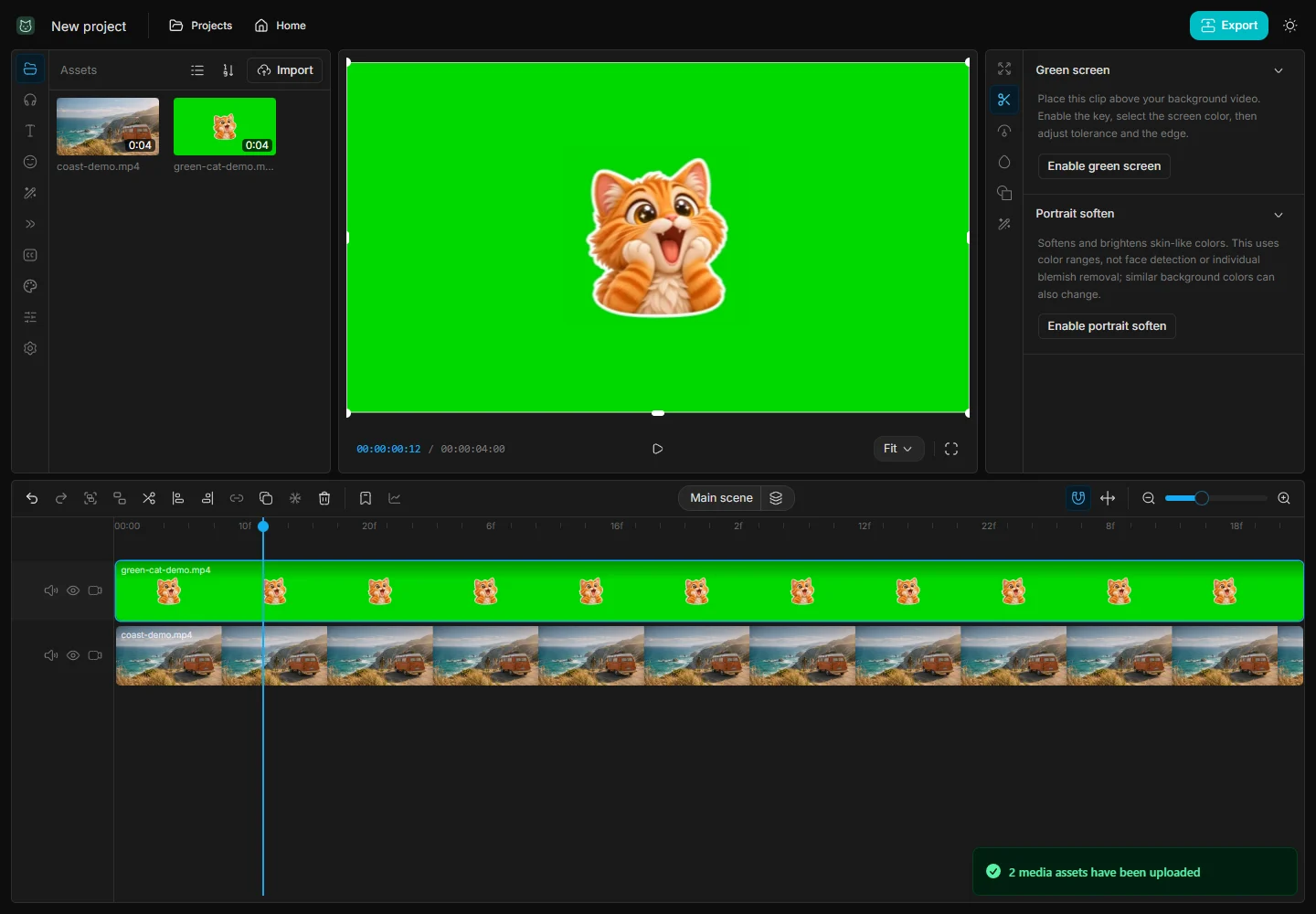
2. Enable the color key
Select the foreground clip, open Cutout & portrait, and enable Green screen. Choose Color to remove, then adjust Tolerance and Edge softness until the backdrop becomes transparent without erasing your subject.
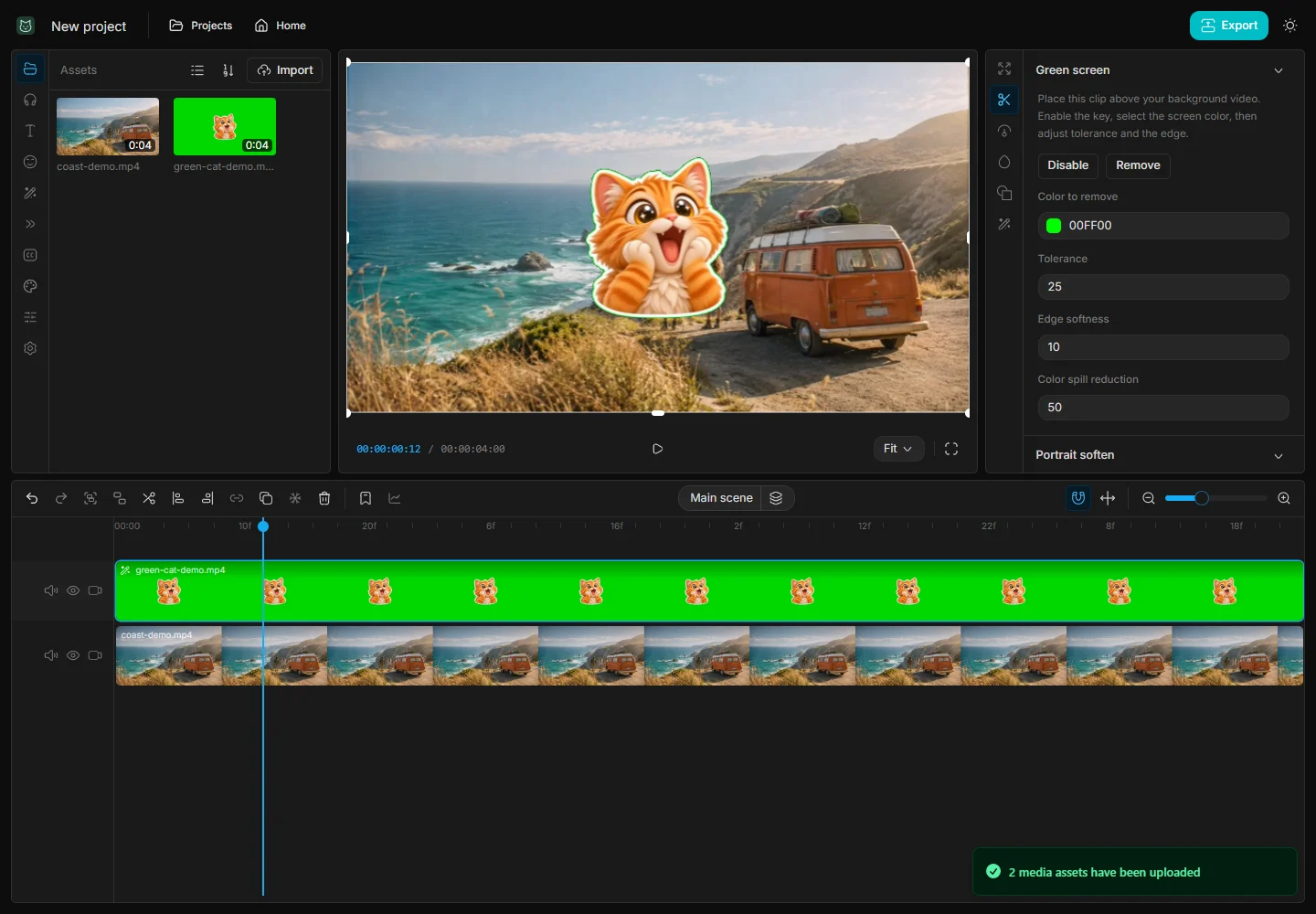
3. Refine the edge and check the export
Use Color spill reduction to reduce reflected green around the subject. Preview bright and dark frames, then export a short section first. This tool removes a chosen color; it does not automatically separate a person from an arbitrary background.
4. If parts of the subject disappear
Lower Tolerance first. If green is still visible, sample a flatter part of the screen near the subject and increase Edge softness slightly. When clothes and backdrop share the same color, try a contrasting backdrop or a mask around the problem area.