Change video speed with a live preview
Speed up or slow down a clip while the multiplier and timeline duration update during the drag.
1. Select the clip and open Speed
The Speed panel applies to the selected video or audio clip. A rate of 1.00× uses the original speed. A rate of 2.00× plays the same source interval in half the time; 0.50× takes twice as long.
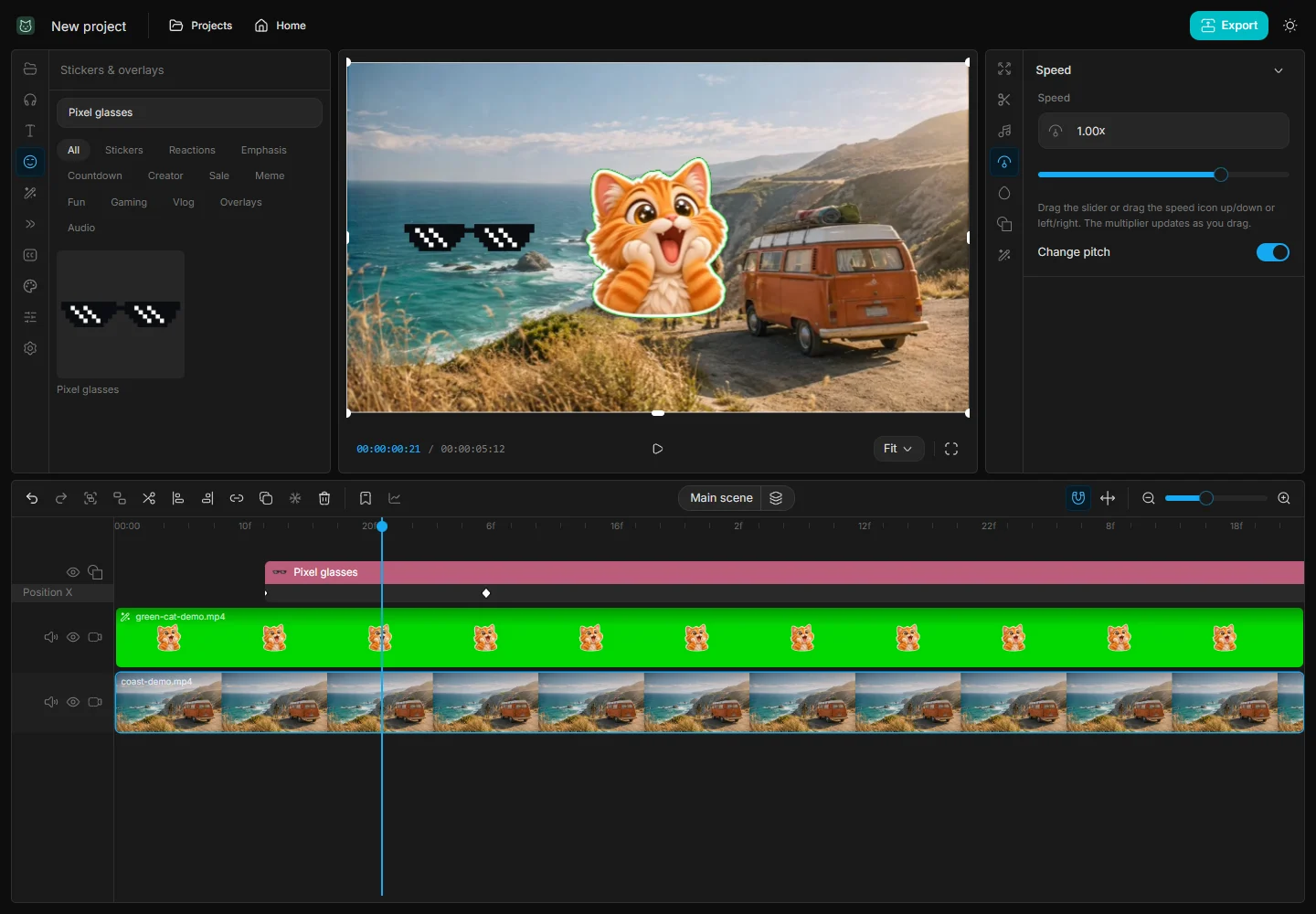
2. Drag or enter the multiplier
Drag the slider, or drag the larger speed icon horizontally or vertically. The multiplier changes during the drag, not just when you release. You can also type an exact value. Releasing a completed drag creates one undoable edit.
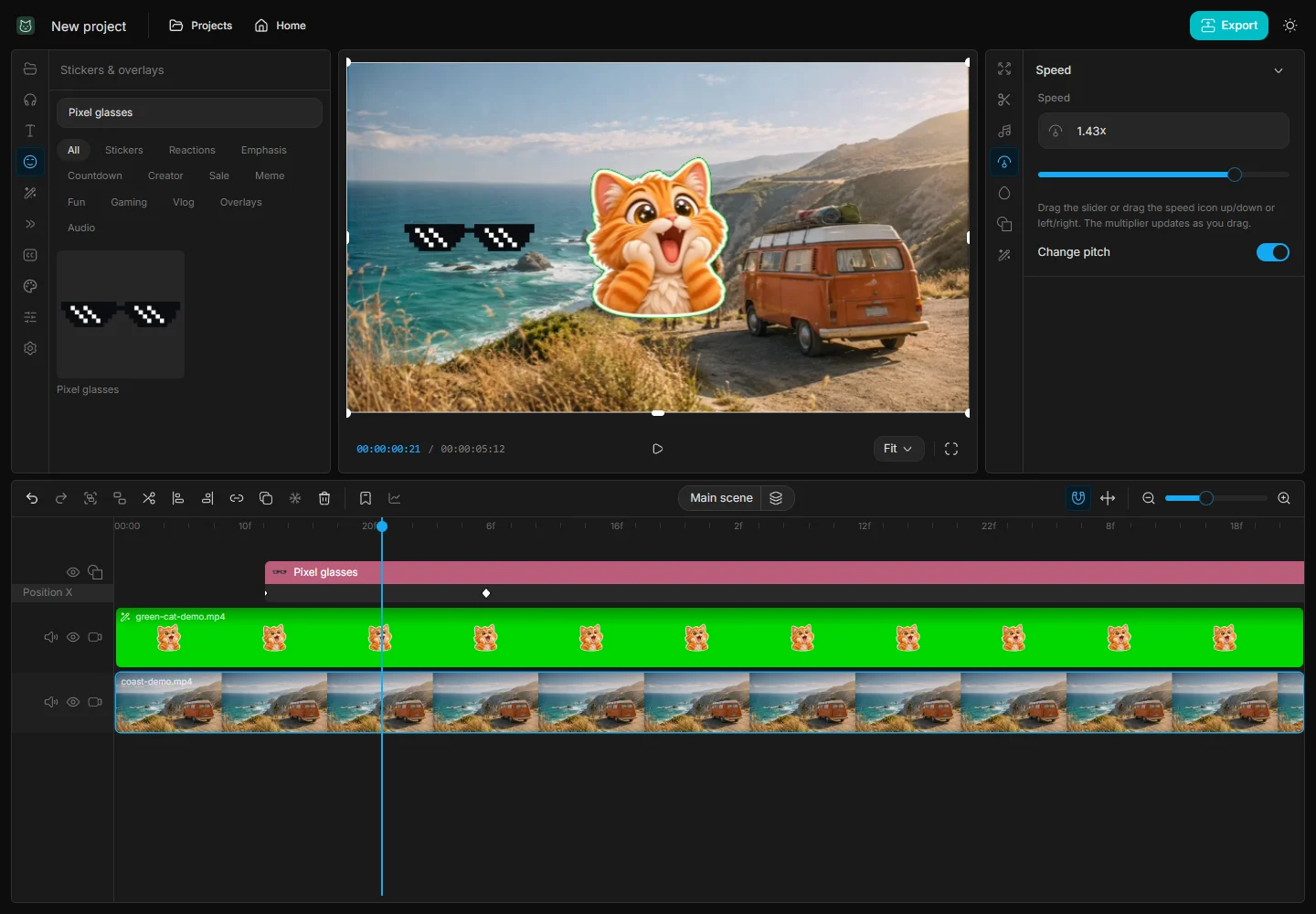
3. Listen and check the result
Preview the section with sound and check the new clip boundary. Use Change pitch if you want pitch to change with speed; otherwise pitch is preserved where supported. Export a short test because browser and source-codec support can vary.
4. Keep the next cut in sync
If only one moment should speed up, split at both ends of that moment before changing its rate. On a 6-second choice, 1.5× gives you about 4 seconds. Recheck the join and the placement of any separate voiceover or music after changing the duration.